How to get KSeF tokens
Generate an authentication token in the KSeF portal and connect it to eKsięgowy AI.
To send and receive invoices through KSeF, eKsięgowy AI needs an authentication token issued by the KSeF portal. This guide walks you through generating one and pasting it into the app. You will need a Qualified Electronic Signature (KEP) or a Trusted Profile (Profil Zaufany).
Open the KSeF portal
Open the KSeF portal in a new tab. Use the test environment first to verify your setup; switch to production once you are confident.
- KSeF — production (ap.ksef.mf.gov.pl/web)
- KSeF — demo environment (ap-demo.ksef.mf.gov.pl/web)
- KSeF — test environment (ap-test.ksef.mf.gov.pl/web)
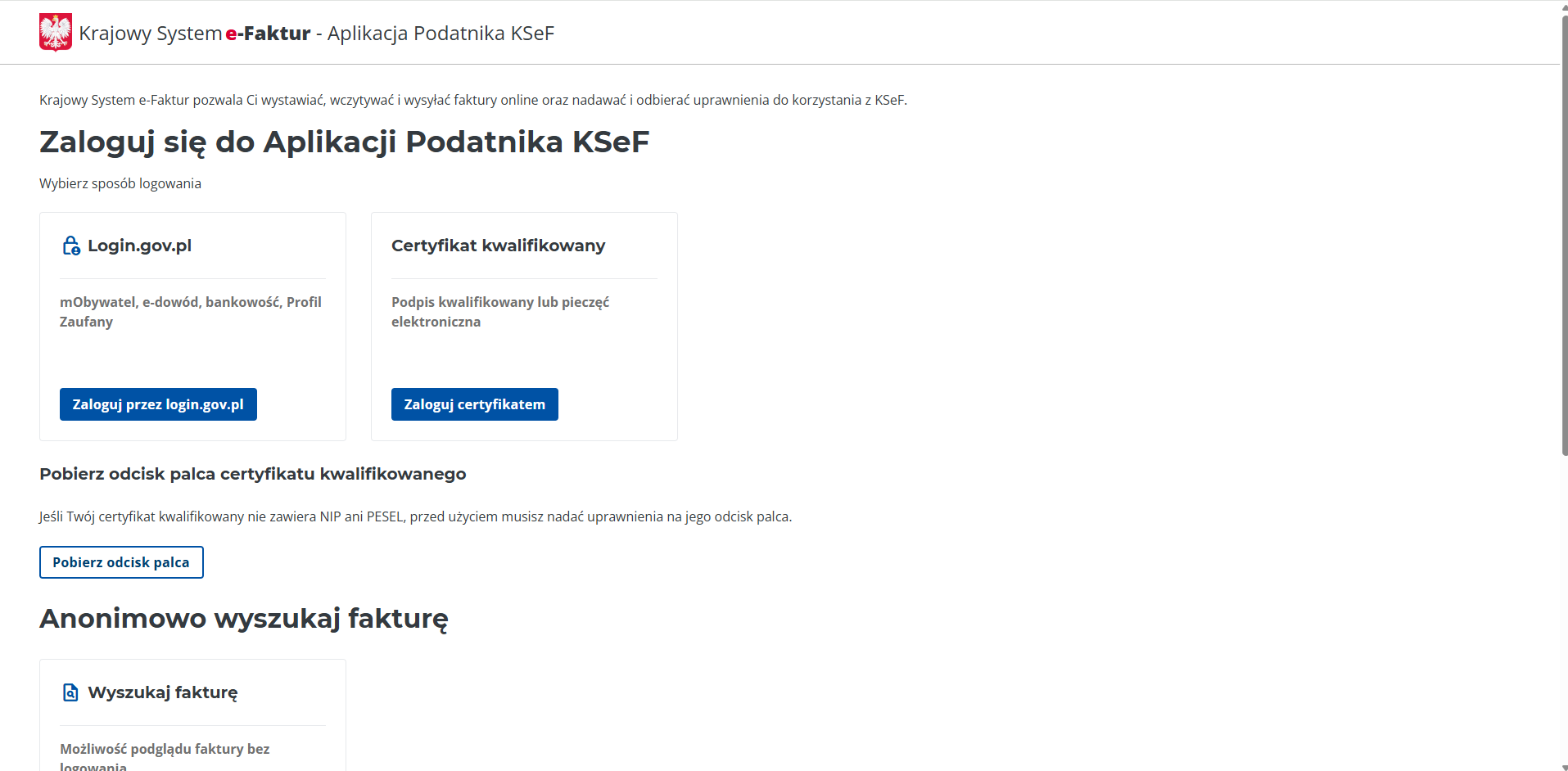
Sign in and select your entity
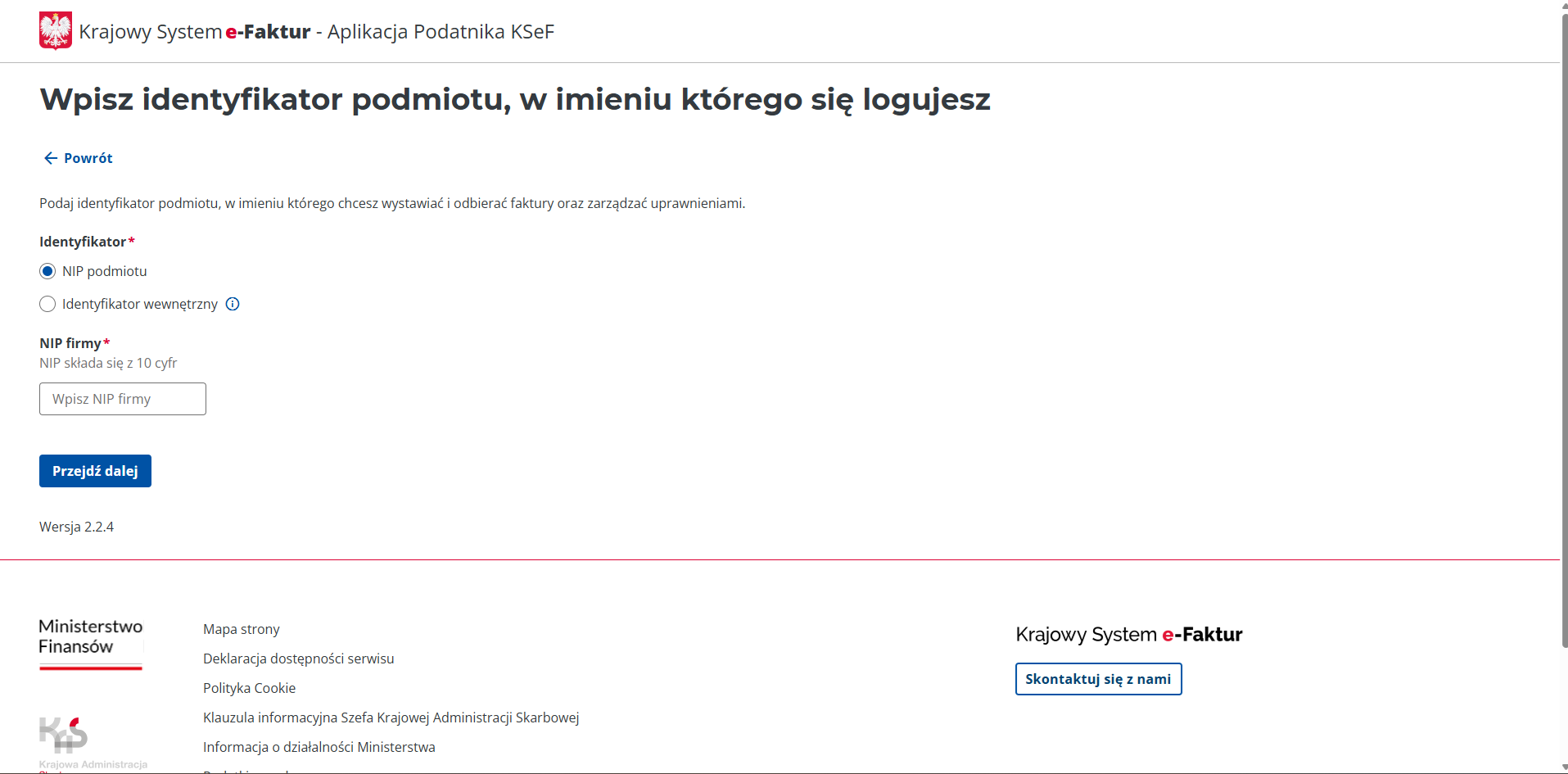
After clicking your chosen sign-in method, complete the authentication flow (mObywatel, banking, or Profil Zaufany via Login.gov.pl, or your qualified certificate). When you return to KSeF, enter the NIP of the entity on whose behalf you'll act.
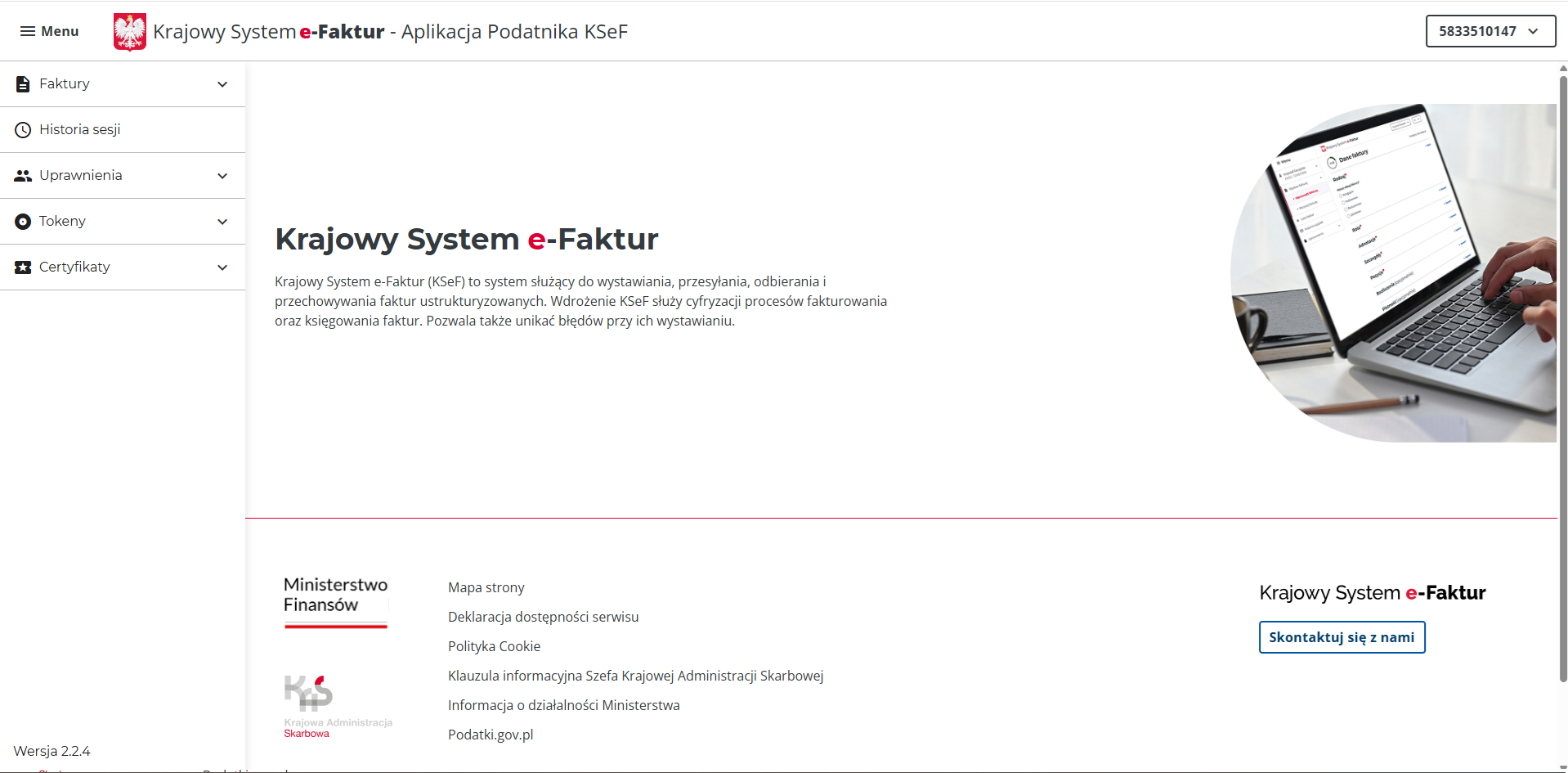
Open the Tokens section
After signing in, go to Uprawnienia → Tokeny in the side menu.
Fill out the token form
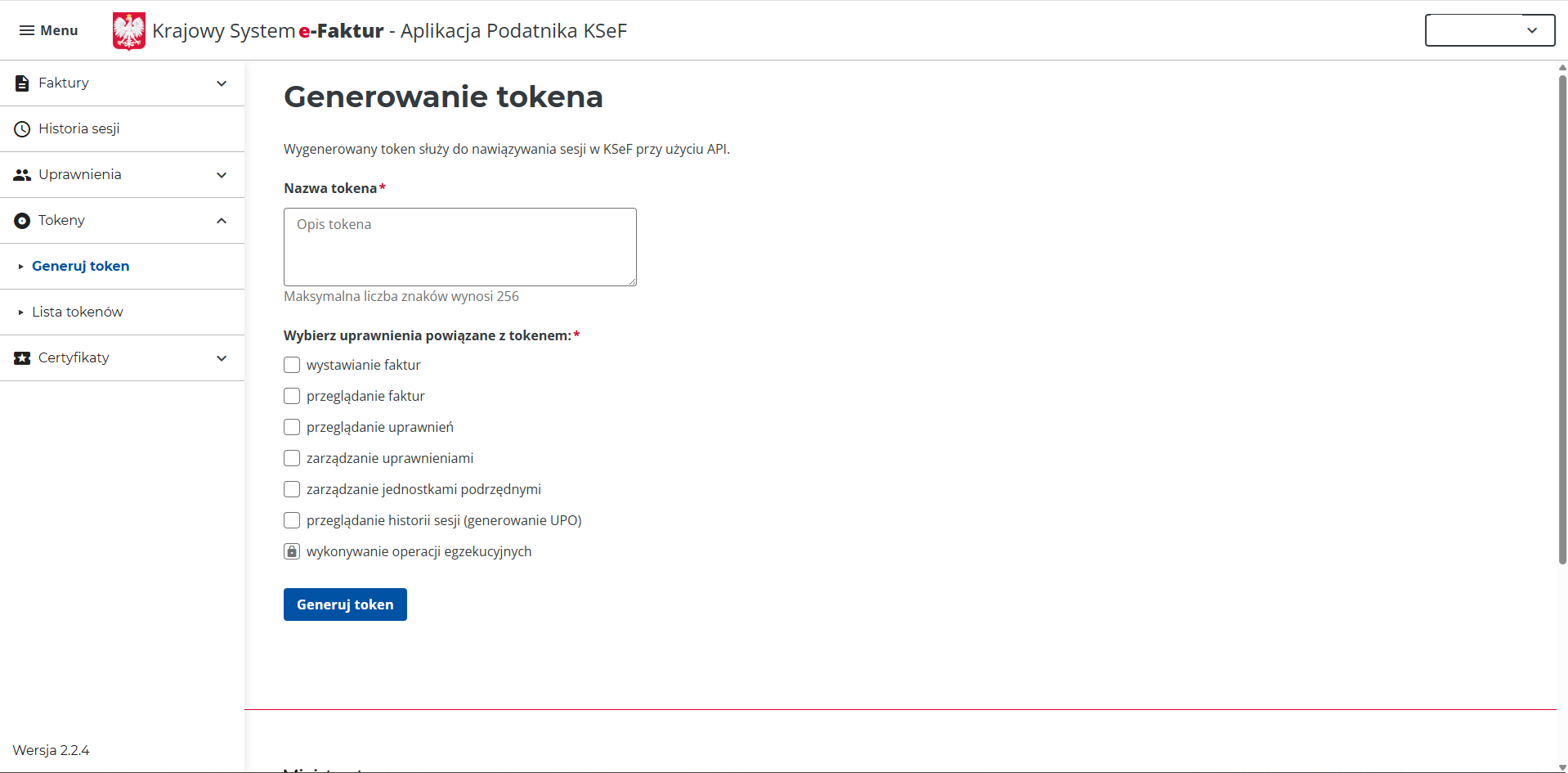
Open Tokeny → Generuj token in the side menu. Give the token a recognizable name (for example, 'eKsiegowyAI'). Below the name, tick the permissions eKsięgowy AI needs: 'wystawianie faktur' (issue invoices) and 'przeglądanie faktur' (view invoices). Do not grant administrative rights.
Generate and wait
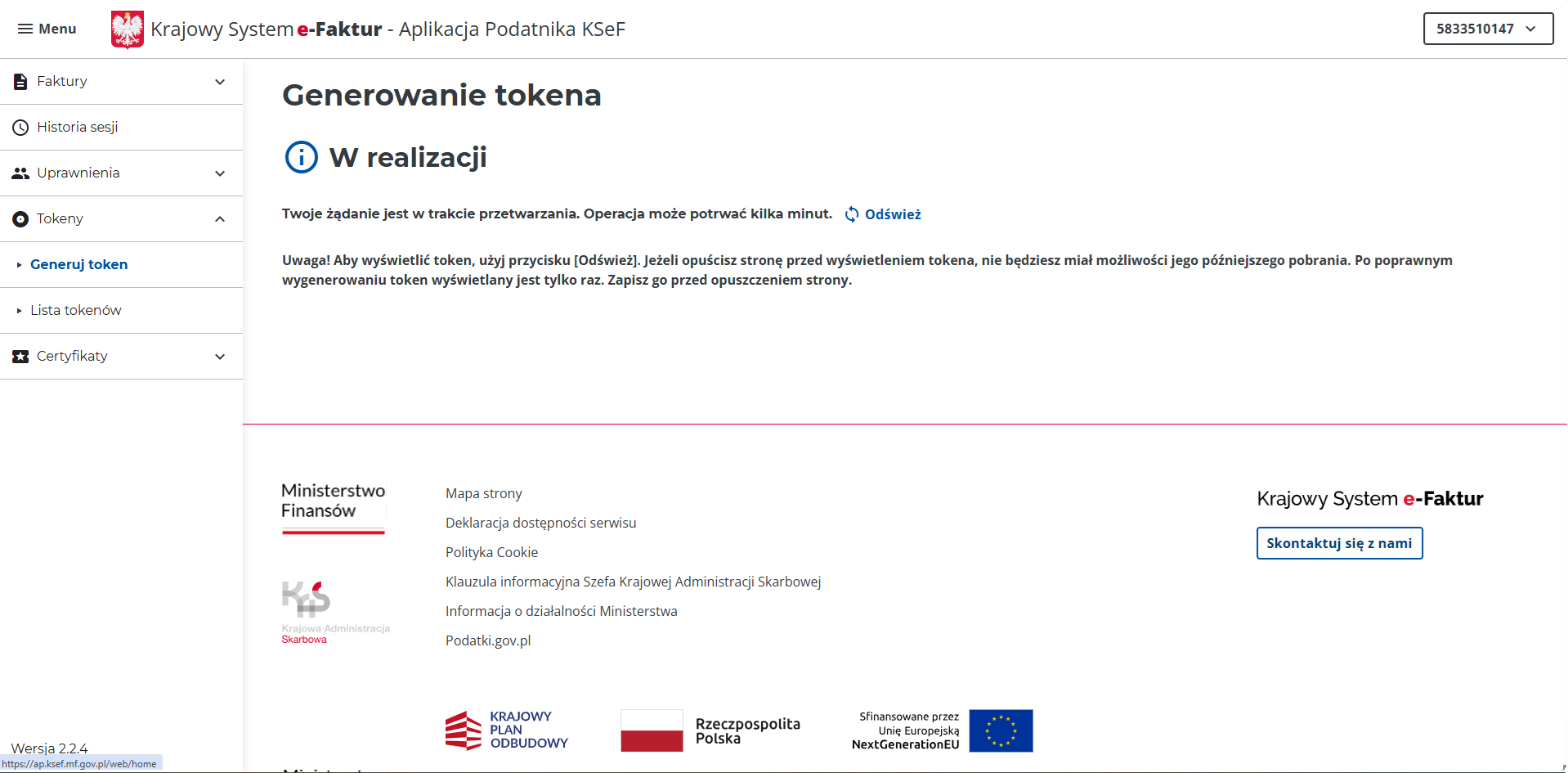
Click 'Generuj token' at the bottom of the form. KSeF queues the request — the status screen shows 'W realizacji' (in progress). Click 'Odśwież' periodically to refresh status. Generation can take a few minutes.
Copy the token
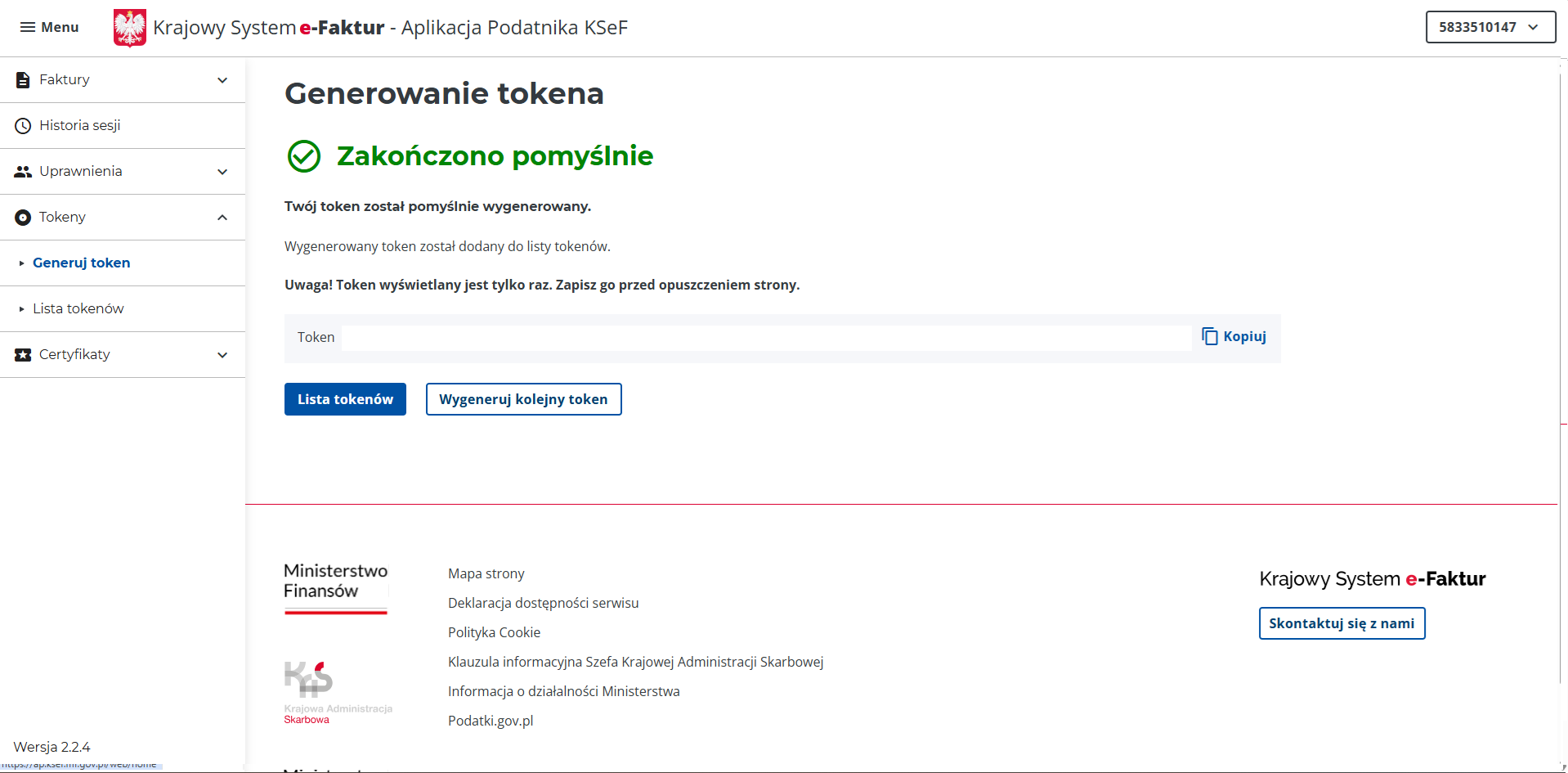
When generation finishes, the screen shows 'Zakończono pomyślnie' (completed successfully). The token appears in a copy field with a 'Kopiuj' button. KSeF warns 'Token wyświetlany jest tylko raz' — copy it immediately to a password manager.
Paste the token into eKsięgowy AI
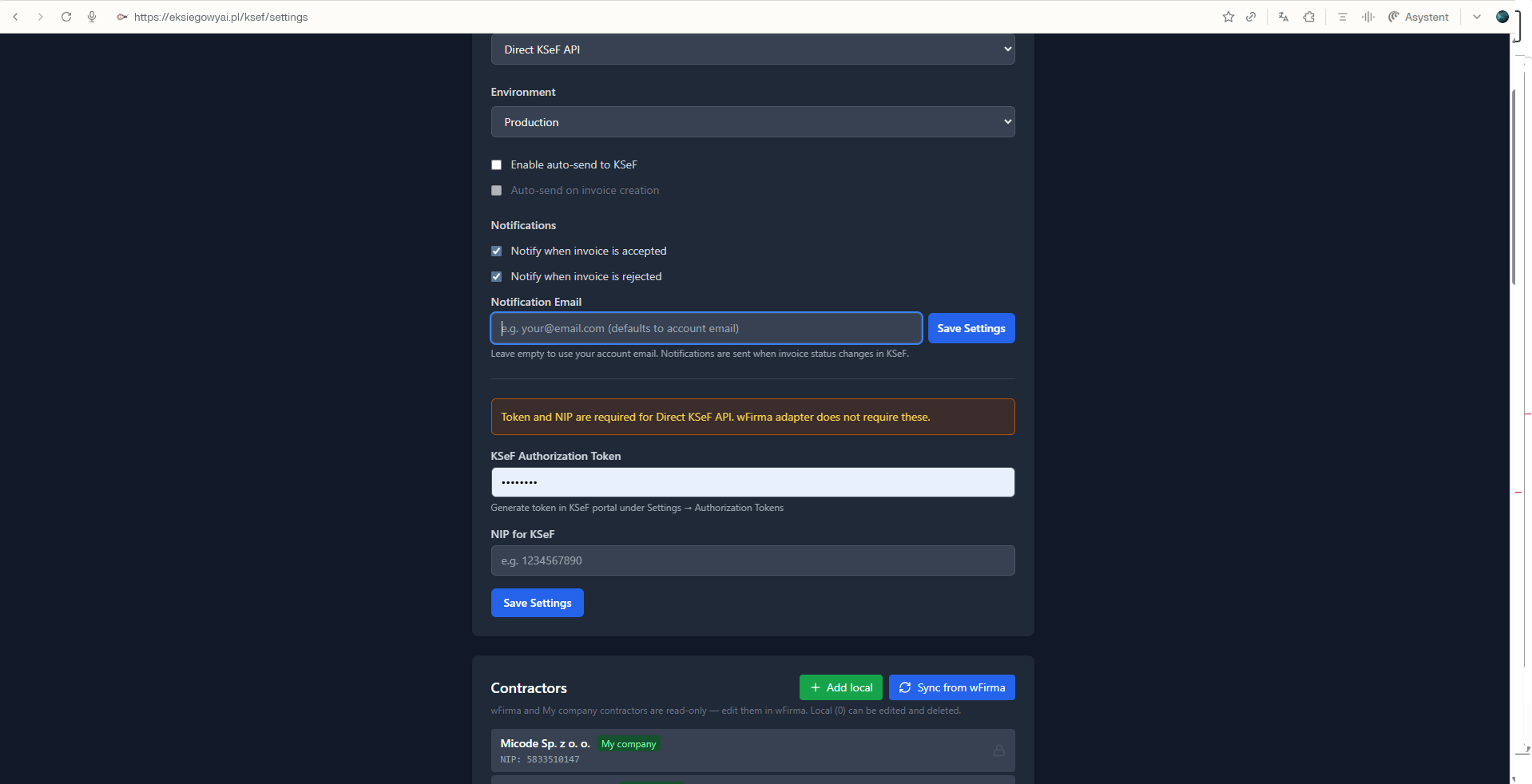
Open KSeF settings in our app. Choose 'Direct KSeF API' as the integration mode and the matching environment (Production, Demo, or Test — the same one you used in KSeF). Paste the token into 'KSeF Authorization Token', enter your NIP, then click 'Save Settings'.